> ## Documentation Index
> Fetch the complete documentation index at: https://docs.standardmetrics.io/llms.txt
> Use this file to discover all available pages before exploring further.
# Initial Setup
> Set up your API access by creating a secure client credentials token in the Standard Metrics Developer Settings.
## Create your API key
Follow these steps to create and securely store an API key using the Standard Metrics Developer Portal. This key will authenticate your requests and enable access to your firm's financial and investment data.
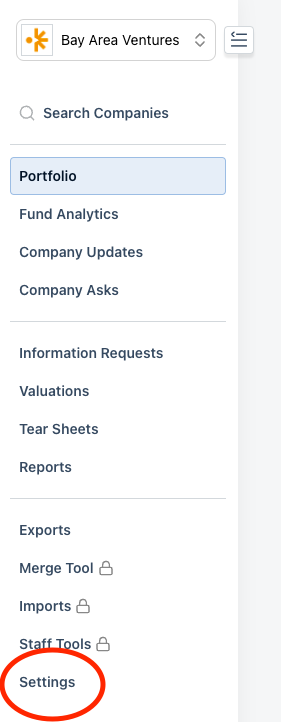
### 1. Navigate to **Settings**
From the firm view of the application, click **Settings** in the left-hand navigation menu.
 ### 2. Go to **Developer Settings**
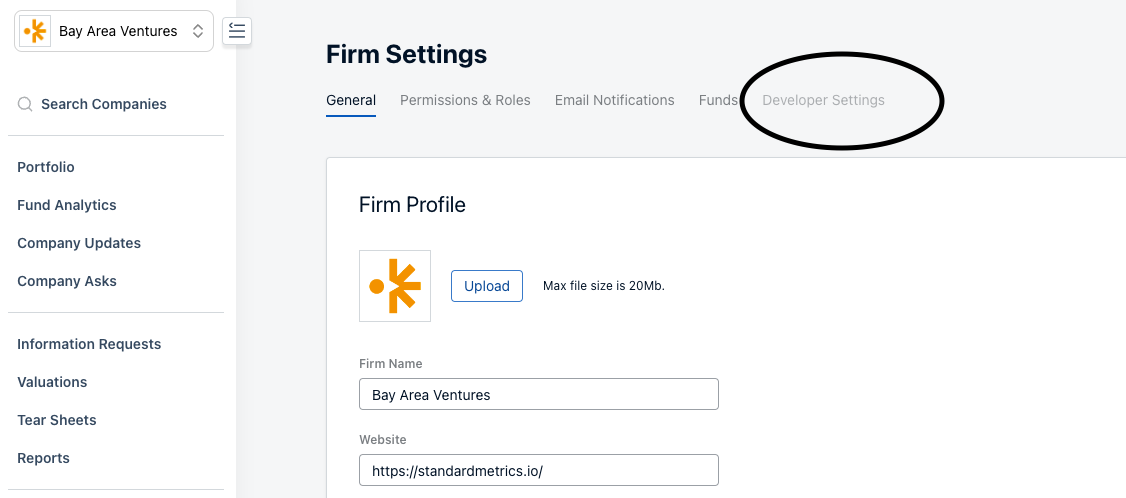
In the settings panel, select the **Developer Settings** sub-tab.
### 2. Go to **Developer Settings**
In the settings panel, select the **Developer Settings** sub-tab.
 ### 3. Click **Add Application**
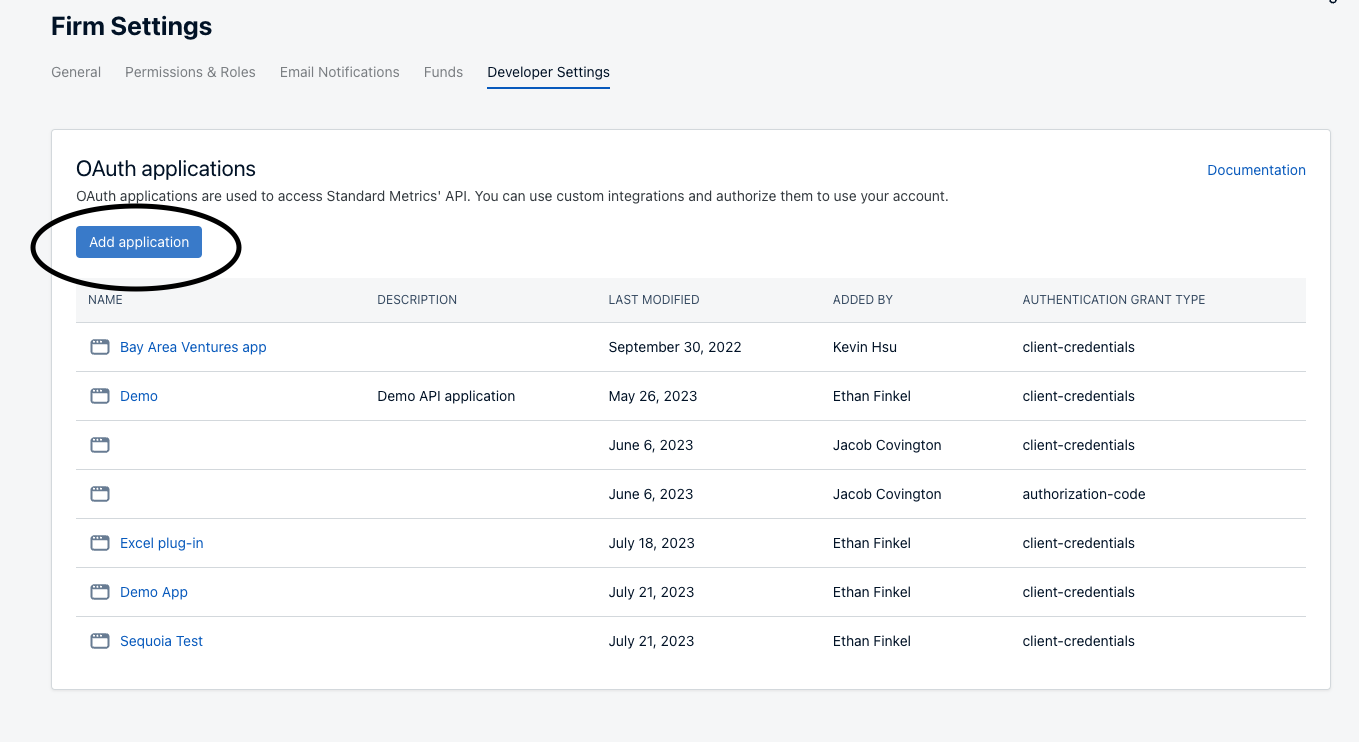
Start a new OAuth application by clicking **Add Application**.
### 3. Click **Add Application**
Start a new OAuth application by clicking **Add Application**.
 ### 4. Create a client credentials token
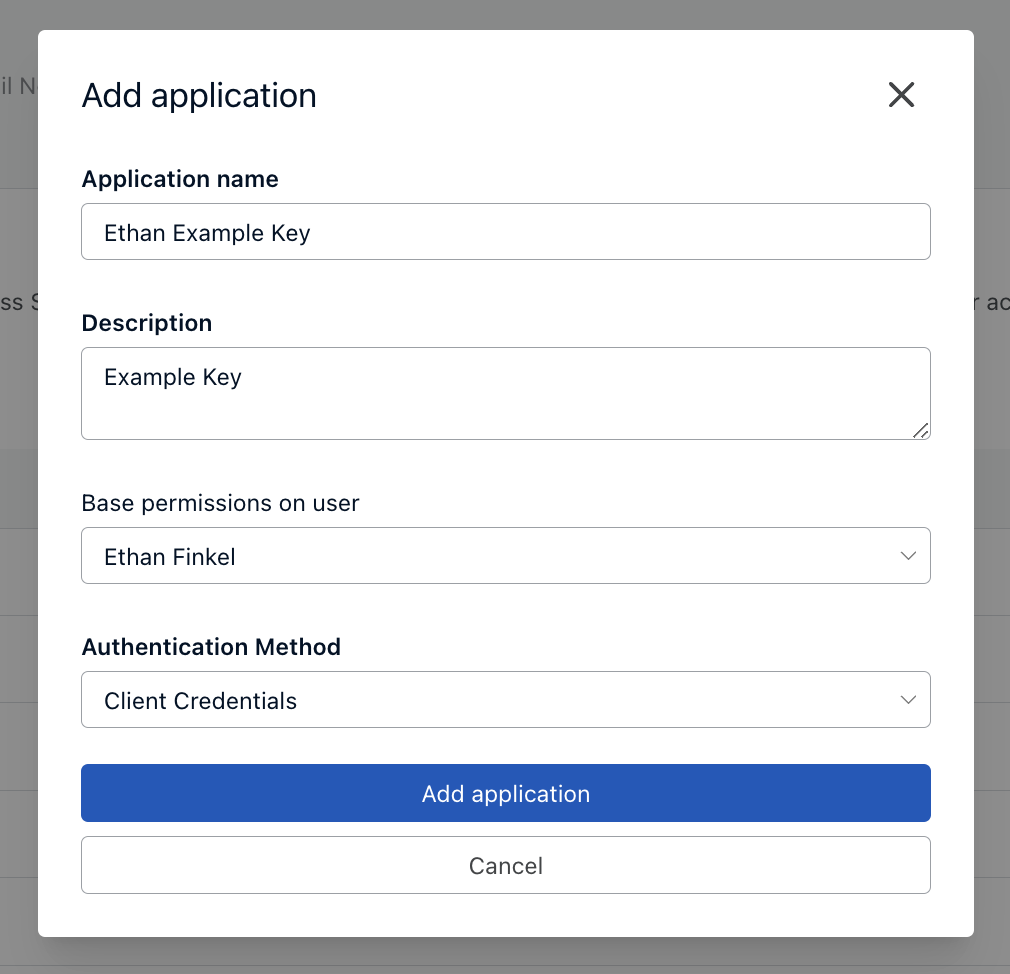
* Enter an **Application Name** and **Description**
* For **Authentication Method**, select **Client Credentials**
### 4. Create a client credentials token
* Enter an **Application Name** and **Description**
* For **Authentication Method**, select **Client Credentials**
 Admins can also define specific user permissions for the API key. Learn more about permissions.
### 5. Save your **Client ID** and **Client Secret**
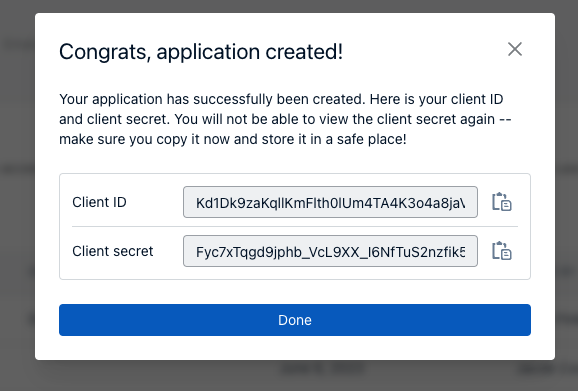
Once the application is created, copy your **Client ID** and **Client Secret** and store them in a secure location.
> These credentials allow access to your firm's data. Treat them like a password.
You can click the clipboard icon to quickly copy each value.
Admins can also define specific user permissions for the API key. Learn more about permissions.
### 5. Save your **Client ID** and **Client Secret**
Once the application is created, copy your **Client ID** and **Client Secret** and store them in a secure location.
> These credentials allow access to your firm's data. Treat them like a password.
You can click the clipboard icon to quickly copy each value.
 ***
You've successfully created an API key. See our [Authentication Guide](/api-reference/setting-up) for detailed instructions on making authenticated API calls using your credentials.
***
You've successfully created an API key. See our [Authentication Guide](/api-reference/setting-up) for detailed instructions on making authenticated API calls using your credentials.