> ## Documentation Index
> Fetch the complete documentation index at: https://docs.standardmetrics.io/llms.txt
> Use this file to discover all available pages before exploring further.
# Excel and MCP
> Use Claude and the Standard Metrics MCP to build dynamic Excel spreadsheets that automatically pull portfolio data
# Using the Standard Metrics MCP with Claude in Excel
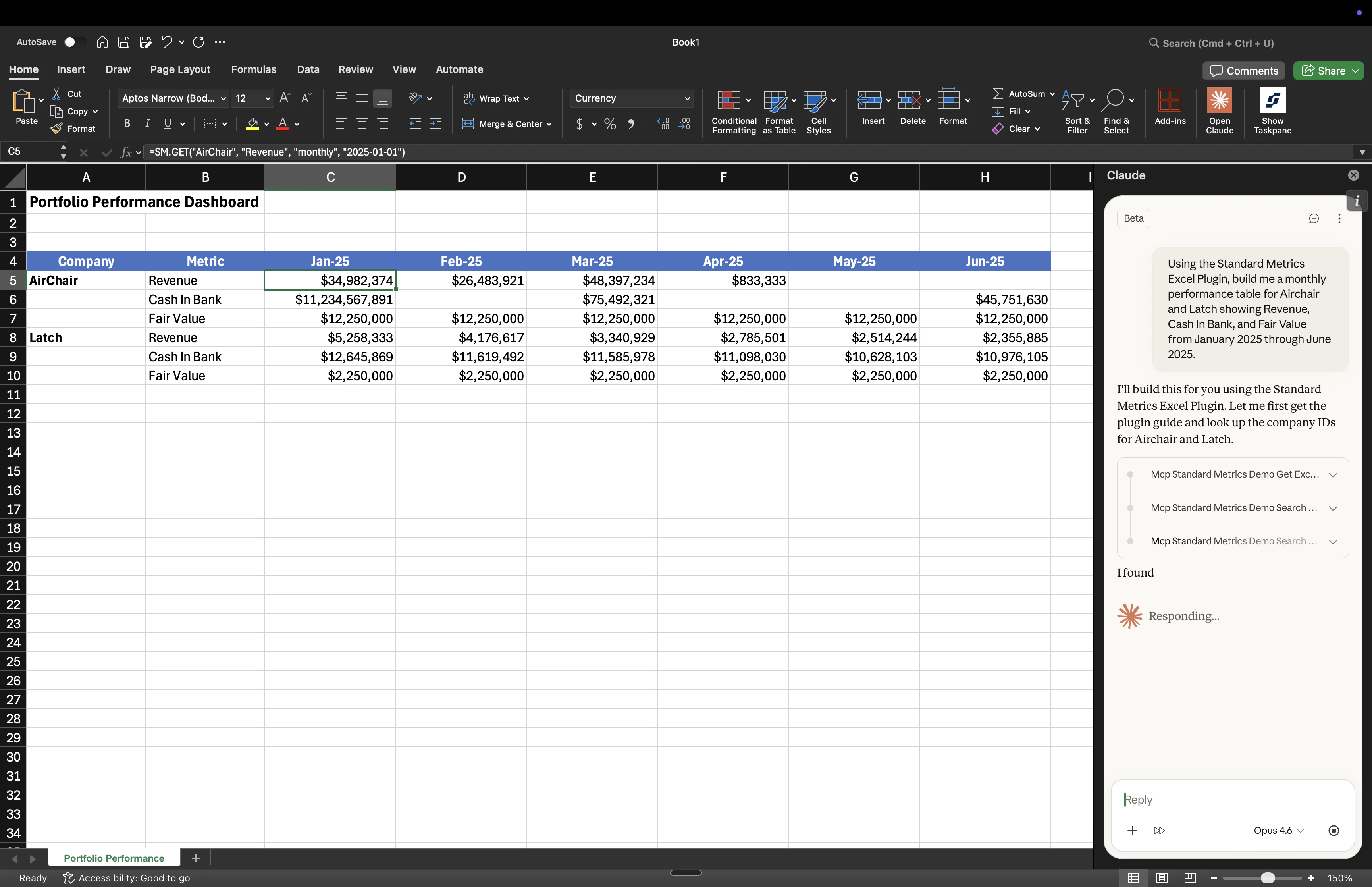 The Standard Metrics MCP can teach Claude (or any other MCP Compatible LLM clients in Excel) how to use the Standard Metrics Excel plugin, a custom Excel add-in that provides `SM.GET` formulas for pulling portfolio data directly in a spreadsheet.
Unlike static data exports, spreadsheets built with these formulas **automatically refresh** with the latest data every time you open or recalculate the workbook. Build a dashboard once, and it stays up to date as new data flows into Standard Metrics.
## Prerequisites
Before you begin, you need three things set up:
1. **Connect to the Standard Metrics MCP in Claude.**
* i. Follow the [Claude setup guide](/guides/mcp-claude) to connect the Standard Metrics MCP to Claude from your browser.
* ii. Log in with your Standard Metrics account.
* iii. The MCP provides Claude with a tool that teaches it the full syntax for the Excel plugin's formulas, which is what allows Claude to build correct `SM.GET` formulas on your behalf.
2. **Install the Claude Excel plugin.**
* i. Install the [Claude in Excel](https://support.claude.com/en/articles/12650343-using-claude-in-excel) add-in from the Microsoft Office Add-ins store.
3. **Install the Standard Metrics Excel plugin.**
* i. Install the **Standard Metrics** add-in from the Excel Add-ins store.
* ii. Open the add-in sidebar in Excel and log in with your Standard Metrics credentials.
* iii. You will need API credentials (client ID and client secret) from the Standard Metrics web app. See [Initial Setup](/guides/initialsetup) for how to generate these.
You must be logged into both the Standard Metrics MCP in Claude **and** the Standard Metrics Excel add-in in Excel with the same account for this workflow to function.
## How It Works
When you ask Claude to build a spreadsheet using Standard Metrics data, the MCP provides Claude with a detailed guide for constructing `SM.GET` formulas. Claude uses your portfolio data from the MCP to write correct formulas with real company names and metric names, then places them directly into your Excel workbook.
* **`SM.GET`** pulls a data point from Standard Metrics into a cell (read). Available to all firms.
## Example: Building a Portfolio Dashboard with SM.GET
`SM.GET` is the formula for pulling data. It takes a company name, metric, time period, and date, and returns a live value.
```
=SM.GET(company_name, metric, [time_period], [date], [currency], [budget])
```
### Sample prompt
Try asking Claude something like this:
> Using the Standard Metrics Excel plugin, build me a monthly performance table for my Healthcare portcos showing Revenue, Cash In Bank, and Fair Value from January 2025 through June 2025.
Claude will use the MCP to look up your actual company names and available metrics to build a live spreadsheet.
The Standard Metrics MCP can teach Claude (or any other MCP Compatible LLM clients in Excel) how to use the Standard Metrics Excel plugin, a custom Excel add-in that provides `SM.GET` formulas for pulling portfolio data directly in a spreadsheet.
Unlike static data exports, spreadsheets built with these formulas **automatically refresh** with the latest data every time you open or recalculate the workbook. Build a dashboard once, and it stays up to date as new data flows into Standard Metrics.
## Prerequisites
Before you begin, you need three things set up:
1. **Connect to the Standard Metrics MCP in Claude.**
* i. Follow the [Claude setup guide](/guides/mcp-claude) to connect the Standard Metrics MCP to Claude from your browser.
* ii. Log in with your Standard Metrics account.
* iii. The MCP provides Claude with a tool that teaches it the full syntax for the Excel plugin's formulas, which is what allows Claude to build correct `SM.GET` formulas on your behalf.
2. **Install the Claude Excel plugin.**
* i. Install the [Claude in Excel](https://support.claude.com/en/articles/12650343-using-claude-in-excel) add-in from the Microsoft Office Add-ins store.
3. **Install the Standard Metrics Excel plugin.**
* i. Install the **Standard Metrics** add-in from the Excel Add-ins store.
* ii. Open the add-in sidebar in Excel and log in with your Standard Metrics credentials.
* iii. You will need API credentials (client ID and client secret) from the Standard Metrics web app. See [Initial Setup](/guides/initialsetup) for how to generate these.
You must be logged into both the Standard Metrics MCP in Claude **and** the Standard Metrics Excel add-in in Excel with the same account for this workflow to function.
## How It Works
When you ask Claude to build a spreadsheet using Standard Metrics data, the MCP provides Claude with a detailed guide for constructing `SM.GET` formulas. Claude uses your portfolio data from the MCP to write correct formulas with real company names and metric names, then places them directly into your Excel workbook.
* **`SM.GET`** pulls a data point from Standard Metrics into a cell (read). Available to all firms.
## Example: Building a Portfolio Dashboard with SM.GET
`SM.GET` is the formula for pulling data. It takes a company name, metric, time period, and date, and returns a live value.
```
=SM.GET(company_name, metric, [time_period], [date], [currency], [budget])
```
### Sample prompt
Try asking Claude something like this:
> Using the Standard Metrics Excel plugin, build me a monthly performance table for my Healthcare portcos showing Revenue, Cash In Bank, and Fair Value from January 2025 through June 2025.
Claude will use the MCP to look up your actual company names and available metrics to build a live spreadsheet.